


How To Speed Up PC Game Loading Times

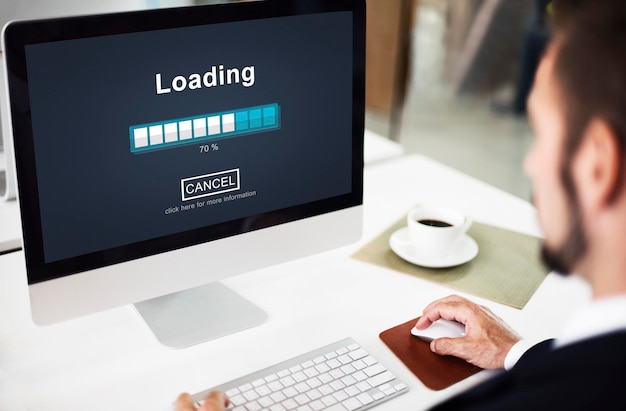
It can be incredibly frustrating when you’re getting ready to play your favorite online or offline game, only for the game to take forever to load. It is even more painful when you’re in the game, and you know you’re about to tackle the boss once you get inside that cave, but suddenly the game just loads and loads the new area while you’re waiting in anticipation.
Sure, you can take this loading time to read a book, clean your apartment, or research some gameplay strategies. Or you can use these agonizing minutes to access a fast withdrawal casino to quickly earn some extra money. Fast-payout casinos pay out winnings almost instantly, making them a great option while you wait for your game to load.
Fortunately, there are also some steps you can take to speed up your game loading times, and it all comes down to speeding up your PC’s processing abilities.
You can switch your computer’s internal hard disk drive (HDD) to a solid state drive (SSD) or nonvolatile memory express (NVMe) SSD to speed up its processing abilities. These drives offer faster data transfer speeds compared to a standard HDD, meaning applications will boot and load faster and your PC will be overall more responsive. With an SSD or NVMe, you’ll enjoy quicker access to game assets, levels will load faster, and textures will also appear much faster in open-world games.
If you want the fastest possible PC speed, then you should upgrade your current RAM to DDR4, or top-level DDR5. This memory technology operates at speeds ranging from 1500 – 3200 MT/s and 4800 – 8400 MT/s (megatransfers per second) respectively. Not all motherboards and CPUs will be compatible with DDR5 RAM, making DDR4 a better option. Upgrading to one of these is perfect for demanding tasks, like loading games with intricate graphics, or running several processes at the same time while you game.
Slow loading speeds can be a result of an outdated Central Processing Unit (CPU). You can select a newer CPU with higher speeds and more cores, which will speed up your entire PC. Combining a new CPU with a cooling system is a good idea as the increased processing power will generate more heat. Any high-intensity computing task, including games, will benefit from a more powerful CPU. Again, just ensure it is compatible with your PC’s motherboard.
If all of the above is too complicated, there is one basic change you can make: select a graphics preset in your game that matches your PC’s hardware capabilities. If you have an older device, this may mean that the game will have lower-quality graphics, but at least you won’t be stuck on the loading screen for too long. There are several steps you can take to determine the optimal graphic settings for your computer:
Decide if you prefer higher visual quality or higher frames per second (FPS): There’s no right answer; you have to decide whether you want higher graphics or faster FPS targets. The settings will also depend on your PC hardware and the game you’re playing. As a safe bet, opt for 60FPS and a resolution slightly lower than what your monitor supports. If the game is still slow, lower the settings until the loading speed improves. Conversely, if the game operates fine at these settings, you can target higher FPS and visual quality.
Disable AMD FSR or NVIDIA DLSS: Some games have a graphics option that allows you to enable image upscaling and sharpening, referred to as either AMD FSR or NVIDIA DLSS. If your game loading speed is slow despite lower-quality graphic settings, disable this feature.
Avoid Ultra settings: Modern games come with Ultra settings that have 4k resolution, reflections, and shadows. These can take a while to load on slower PCs, so disable these and select a lower-quality setting instead.
Defragmenting your hard drive (called “defrag”) can resolve slow speeds, freezing screens, and long boot times. This process can be done via the Control Panel on a Windows computer by running an analysis. The analysis may conclude that the disk must be defragmented. This process offers improved storage by consolidating files and provides faster access to game files, which will launch a game and levels in the game faster. Defrag is not necessary on a Mac, since macOS has built-in systems that automatically clean up the system.
A quick fix for a slow computer is also to remove any unnecessary files, programs, or applications. If your PC has more disk space available, it will run a bit faster, which will benefit your gaming. You can run a disk cleanup to automatically find unused files, and even run a malware scan to spot any malicious software that might be slowing down your system.
Your computer is a pro at multitasking, but the more processes it is running simultaneously, the slower it will be. You can use Task Manager to view all programs currently running and close those that you don’t need while gaming. This simple task can significantly speed up your PC and also your game.
Your internet connection can also have a big impact on your game’s loading time. A slow WiFi will result in slower loading times for online games. To fix this issue, you can purchase a high-speed WiFi router or connect directly to your router with an ethernet cable. Run a speed test to see your current connection speed before you play to avoid frustration. Even a quick router reboot can work wonders to speed up your internet.
Latest Gaming News
All News